How to Add Voice AI to Your Website (No Code)
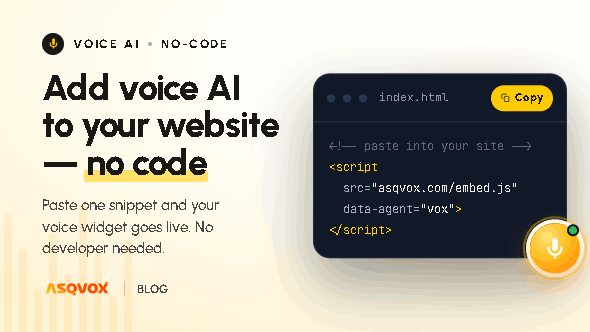
Adding voice to your site is a no-code job you can do yourself in a few minutes. You build the AI voice agent through a short, guided setup, then paste a single script tag into your website. Here's exactly what to prepare, how the setup works step by step, and what to do once it's live.
What you're actually doing
Putting voice AI on your site means adding a widget that lets your visitors have a spoken conversation with an agent that answers from your own content. With AsqVox that agent is the Orb, and the whole thing is built so a business owner, marketer or agency can set it up end to end without code or a developer. The setup is seven guided steps, and it finishes with one script tag you paste onto your site.
Before you click into it, it helps to have a few things ready, so you're not scrambling halfway through.
What to have ready before you start
Your website URL. This is a must, it's the first thing the setup asks for. You don't need Google Tag Manager or any special access to begin. At the end you'll get a script tag, and you either paste it into your site's page code yourself or hand it to your developer to drop in.
Your knowledge base content, kept tight. This is the deciding factor in how good your agent is, so it's worth getting right. The instinct is to throw every document you own at it, but the better move is the opposite: keep the KB highly optimised, only the details you actually want the agent to respond to. That filtering is the real preparation. At the same time, don't try to perfect it in a vacuum first. Get into the steps, because the questions there teach you what an accurate KB actually needs, and there's no single right way to write one. Start focused, then refine.
A hex code for the Orb's colour. Have the colour you want ready, usually the one that matches your branding, as a hex code, so the agent looks like it belongs on your site.
A sense of tone and the agent's main job. Decide what you mainly want it to do, answer questions, book appointments, capture leads, and the tone you want it to speak in. This gets configured during setup when you describe your business.
The setup, step by step
With AsqVox it's seven steps:
Add your domain. Enter the website where the widget will live.
Choose placement. Pick where the play button appears, a corner, the hero section, or a custom spot.
Brand it. Set your colours (the hex code you prepared), your logo and the agent's name to match your brand.
Describe your business. A short summary of what you do, who you serve, and the tone you want the agent to speak in. This is where the agent's job and personality get set.
Upload your knowledge base. Paste a website link, drop a document, or fill in the fields. The agent learns strictly from this content, which is why keeping it focused matters.
Add your FAQs. The high-intent questions your visitors actually ask, answered the way you'd answer them.
Copy and paste the script. You're handed one
<script>tag. Put it on your site, hit save, and you're live.
Adding the script tag to your site
The script tag is the only part that sounds technical, and it really isn't. You paste the tag into your website's page code where you want the widget to load. If you'd rather not touch the code yourself, hand the tag to your developer and they'll have it in place in a minute. You don't need Google Tag Manager or any extra tooling, it works on a normal site the way any embed does.
Test it before you trust it
Before you let it loose on real visitors, talk to it yourself. Open the widget and ask it the questions a real visitor would, the obvious ones and the awkward ones, and check whether it answers from your content accurately. This is the quickest way to catch a thin spot in your knowledge base or a tone that's slightly off, before anyone else runs into it.
Improving it after it's live
Here's something worth being clear about: the agent doesn't teach itself from the conversations it has. There's no automatic learning happening in the background. Improving it is something you do, and that's a good thing, because it means you stay in control of what it says.
The dashboard gives you the raw material for that. After conversations, you get transcripts, recordings, a summary of each chat, the tone it carried (positive, neutral or negative), and any contact details the visitor left. You read through those to see what visitors actually asked, and where the agent struggled or missed. Then you go back and tighten things: add the FAQs you hadn't thought of, sharpen the knowledge base, adjust the tone or the opener, change the trigger timing if it's stepping in too early or too late. It's a loop of tinkering and testing against what the conversations are telling you, and the agent gets noticeably better the more you do it.
Frequently asked questions
Do you need a developer to add voice AI to your website?
No. The setup is no-code, seven guided steps that anyone can do. The only paste-it-in moment is the script tag at the end, and you can either add that yourself or hand it to a developer if you'd prefer.
How long does it take to set up?
A few minutes. You go through the seven steps, get your script tag, and you're live.
What should you have ready before you start?
Your website URL, a focused knowledge base of the things you want the agent to answer, a hex code for the Orb's colour, and a sense of the tone and the main job you want it to do.
Do you need Google Tag Manager?
No. You paste the generated script tag straight into your site's page code, or hand it to your developer. No extra tooling is required.
How much content does the knowledge base need?
Enough to answer what you want it to, and no more. Keep it tight and filtered rather than dumping in every document. The setup questions help you work out what it actually needs, and you can refine it later from what real conversations reveal.
How do you know it's working?
Talk to it yourself first. Ask the questions a real visitor would and check the answers are accurate and on-tone before you rely on it.
Does the agent improve on its own over time?
No. It doesn't learn from transcripts automatically. You review the conversations in the dashboard and refine the knowledge base, FAQs, tone and triggers yourself, which keeps you in control of what it says.
How do I add voice to my site?
Go through a no-code, seven-step setup: add your domain, brand it, describe your business, upload your knowledge base and FAQs, then paste the single script tag it gives you into your site. It takes a few minutes and needs no developer. The full walkthrough is above.